Lalyan Cosmetic Core
Lalyan Cosmetic Core is an API for Hytale that allows players to equip and customize cosmetic items without occupying armor slots.
About Lalyan Cosmetic Core
English
Lalyan Cosmetic Core
An API to register and customize cosmetics without using armor slots
Custom Wardrobe model and texture are made by EtherealShigure.
Introduction
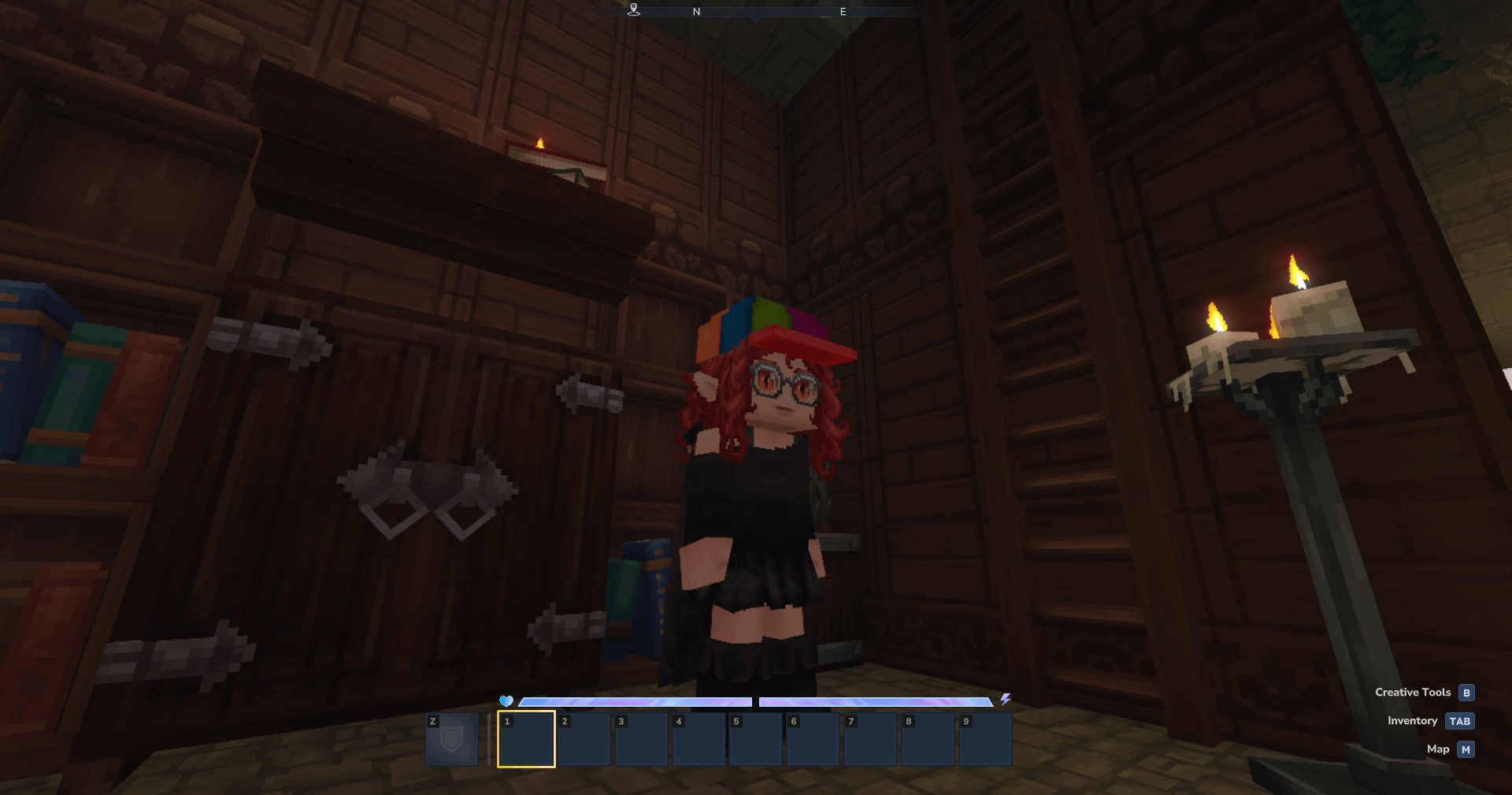
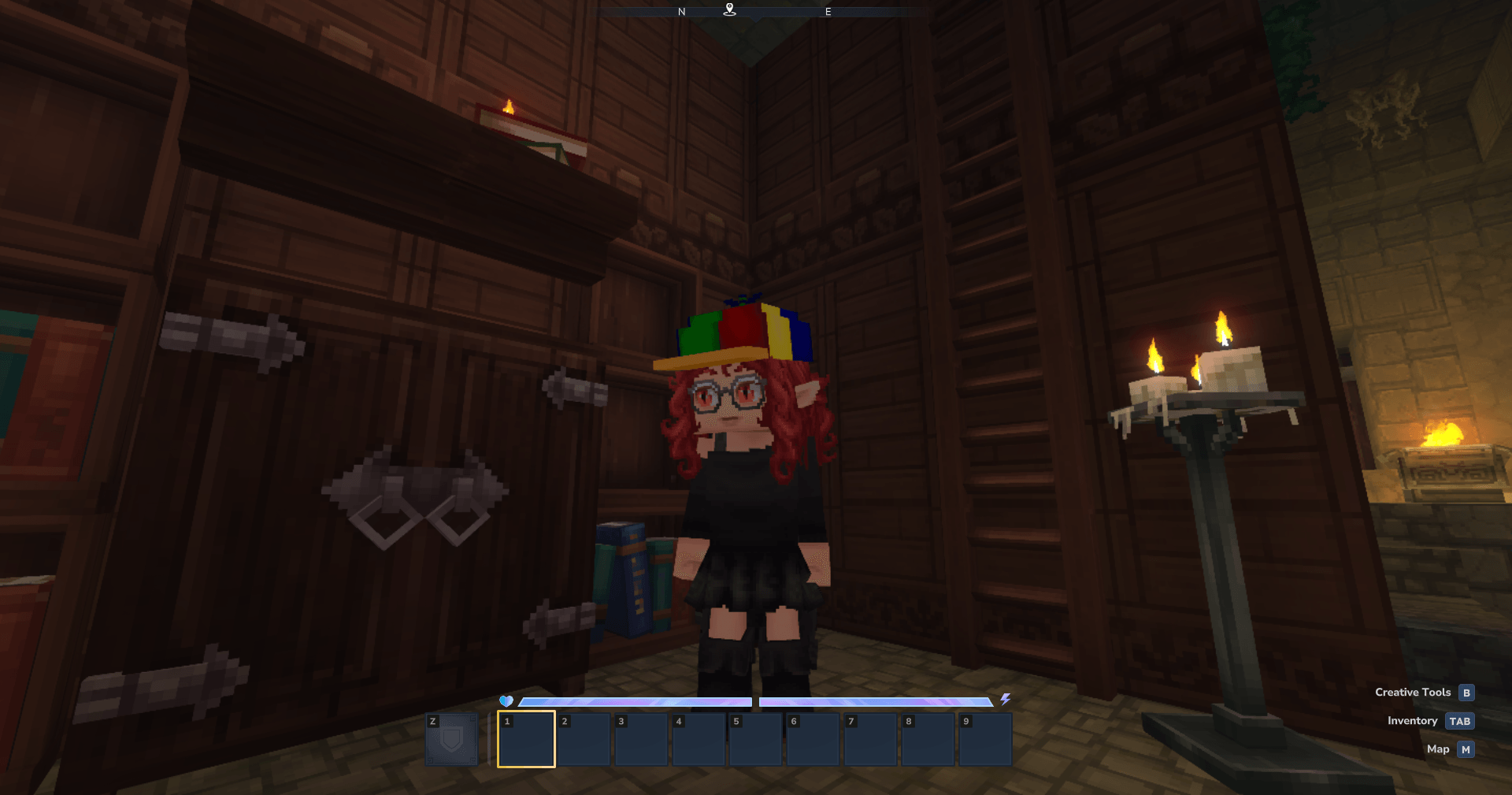
This plugin allows players to customize which cosmetic they have equipped, without having to use up their armor slots
It also allows plugin makers to create their custom cosmetics, without needing any java code!
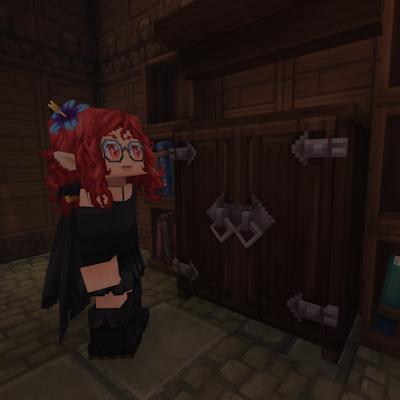
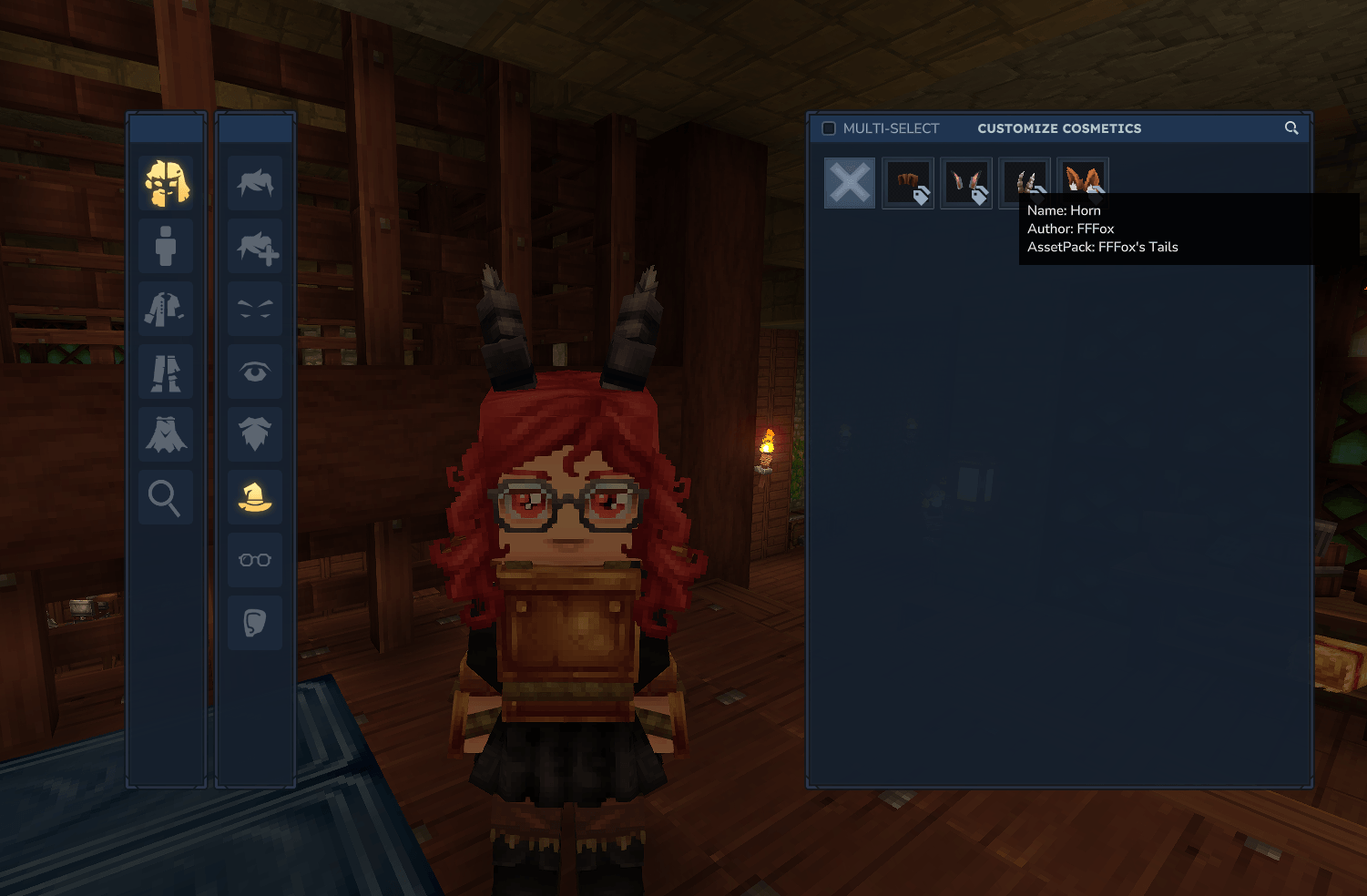
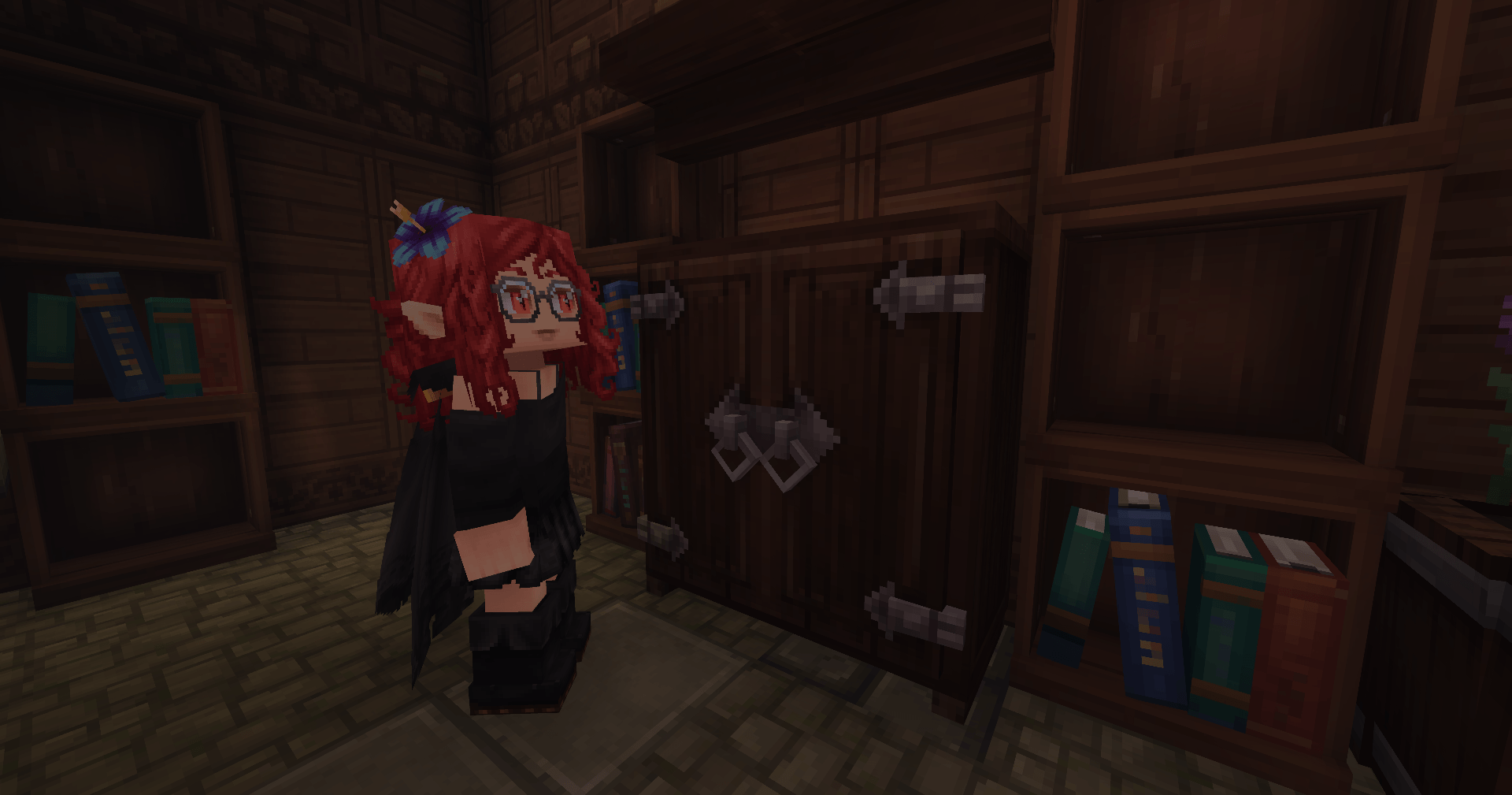
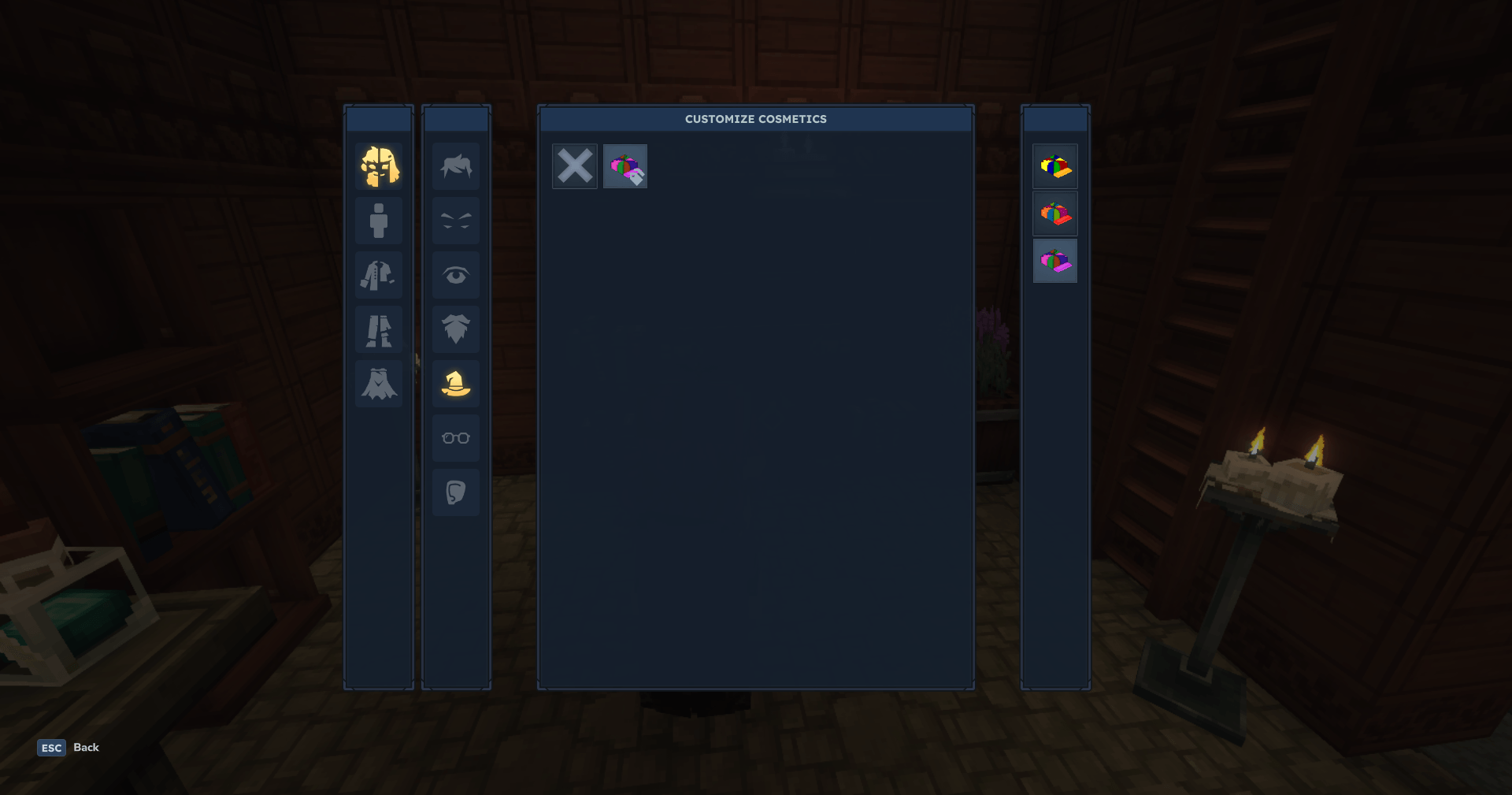
The plugin features a custom GUI to customize cosmetics, which can be opened by command or, in a more immersive way, by crafting the Cosmetic Wardrobe
The Cosmetic Wardrobe can be crafted in the Builder's Workbench using 4 of any Hardwood
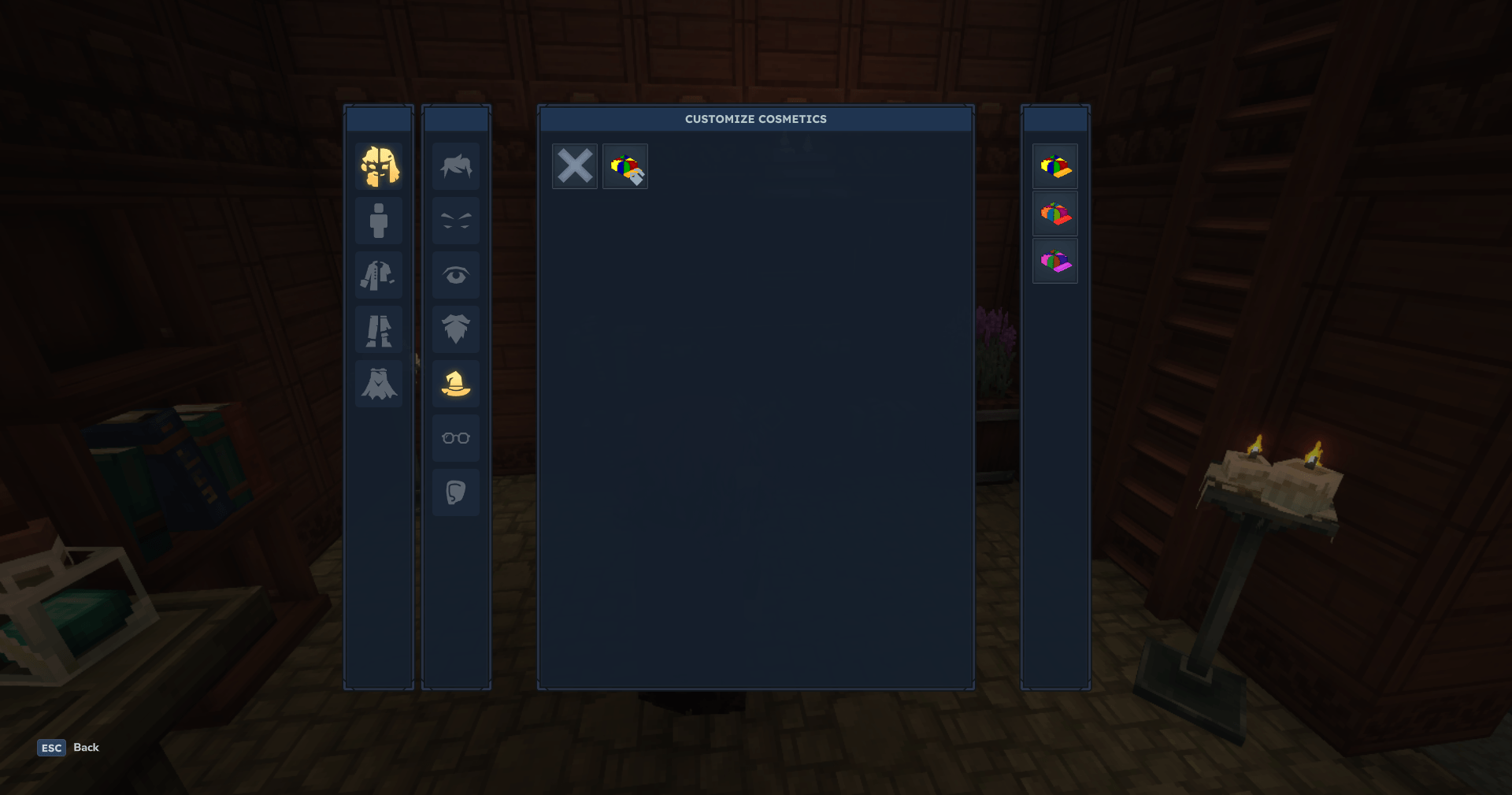
The GUI provides an easy way to select cosmetics and cosmetic variants. Left-click on a cosmetic to equip it, if the cosmetic has the variant icon, right-click it to open the variant menu!
Commands
The plugin has some commands that are mainly for testing purposes:
/cosmetic apply <CosmeticId> [override] manually applies a certain cosmetic defined by CosmeticId, override is optional, default is yes [other value is no], determines whether all other cosmetics of its type should be removed. Requires OP
/cosmetic change manually opens the Cosmetic Customization UI. Does not require permissions
/cosmetic list prints in chat all loaded cosmetic ids. Requires OP
/cosmetic reload manually reloads all cosmetics. Requires OP
/cosmetic clear removes all custom cosmetics and resets the default skin. Requires OP
Registering cosmetics
!Warning! Remember that the name you give to the files is important!
Registering a cosmetic is quite simple. You'll need to make an asset pack (obviously), and will need 3 files:
The cosmetic's .blockymodel
The cosmetic's .png texture
The cosmetic's .png icon, which is the same icon you would use for the item!
These files must be named in the same way, that being CustomID.extension
Each cosmetic will be its own folder, with this structure
CustomID/ ├── CustomID.blockymodel ├── CustomID.png └── Icon/ └── CustomID.png Then the cosmetic will go in a certain folder, depending on the type:
Cosmetics
(things like shirts, caps, pants etc..)
The base path for cosmetics is Common/Resources/Cosmetics, then the folder based on the slot, which can be:
Capes
Ears_Accessories
Gloves
Head
Face_Accessories
Overpants
Overtops
Pants
Shoes
Undertops
Underwears
Then the folder you made before.
So, for a cosmetic called Custom_Cape, which is in the cape slot it would be like this:
Common/Resources/Cosmetics/Capes/Custom_Cape and inside the Custom_Cape folder:
Custom_Cape/ ├── Custom_Cape.blockymodel ├── Custom_Cape.png └── Icon/ └── Custom_Cape.png Characters
(things like mouth, ears, eyes etc..)
The base path for character cosmetics is Common/Resources/Characters, then the folder based on the slot, which can be:
Beards
Ears
Eyebrows
Eyes
Faces
Mouth
Haircuts
Hair_Extension
Wings
Tails
Horns
Face_Details
Then the folder you made before.
So, for a character cosmetic called Custom_Eyes, which is in the cape slot it would be like this:
Common/Resources/Cosmetics/Capes/Custom_Eyes and inside the Custom_Eyes folder:
Custom_Eyes/ ├── Custom_Eyes.blockymodel ├── Custom_Eyes.png └── Icon/ └── Custom_Eyes.png The Hair_Extension slot automatically takes the same gradient as the Hairstyle.
Variants (optional)
!Warning! Variants and colors are mutually exclusive!
!Warning! Hair extensions cannot have variants nor colors, they changes according to the hairstyle!
This API also allows you to add variants.
To add variants, you will need to add the variant texture and icon inside your cosmetic's folder.
The variant textures must be placed in the cosmetic folder (CustomID) and named as follows:
CustomID_Variant_VariantName.png The variant icons must have the same name given to the variant texture, but unlike the texture, they must be placed inside the Icon/ folder.
Taking the Propeller_Hat as an example:
Propeller_Hat/ ├── Propeller_Hat.blockymodel ├── Propeller_Hat.png ├── Propeller_Hat_Variant_Circus.png ├── Propeller_Hat_Variant_Rainbow.png └── Icon/ ├── Propeller_Hat.png ├── Propeller_Hat_Variant_Circus.png └── Propeller_Hat_Variant_Rainbow.png Doing so, the API will load: Propeller_Hat, Propeller_Hat_Variant_Circus, Propeller_Hat_Variant_Rainbow.
They will be seen by the API as variants of the same cosmetic, so they will implicitly use Propeller_Hat.blockymodel
Colors (optional)
!Warning! Variants and colors are mutually exclusive!
!Warning! Hair extensions cannot have variants nor colors, they changes according to the hairstyle!
This API also allows you to add multiple colors to a cosmetic!
To add colors you need to change the folder of your cosmetic like this: Cosmetic_Id_Colors_GRADIENTSET
The texture has to be grayscale (completely desaturated).
here's a list of all aviable gradient sets:
Colored_Cotton
Eyes_Gradient
Faded_Leather
Fantasy_Cotton
Fantasy_Cotton_Dark
Flashy_Synthetic
Hair
Jean_Generic
Ornamented_Metal
Pastel_Cotton
Rotten_Fabric
Shiny_Fabric
Skin
Here's an example:
Item name: Sample_Shirt
Alternative: Colors
Gradient Set: Colored_Cotton
The folder name is: Sample_Shirt_Colors_Colored_Cotton
The folder structure is:
Sample_Shirt_Colors_Colored_Cotton/ ├── Sample_Shirt.blockymodel ├── Sample_Shirt.png └── Icon/ └── Sample_Shirt.png model, texture and icon's names have to be just the name without _Colors_GRADIENTSET
Advanced Cosmetics (optional)
Inside your cosmetic folder, you can add a Cosmetic_Id.json file. This file allows you to customize even more your cosmetics.
Within the JSON file, you are able to change the name and path of the model, texture and icon of your cosmetic. And that's not all, you'll also be able to define variants and color gradients of your cosmetic and if the cosmetic occupies MORE THAN ONE SLOT!
{ "model": "Resources/Cosmetics/Head/Propeller_Hat/Propeller_Hat.blockymodel", "texture": "Resources/Cosmetics/Head/Propeller_Hat/Propeller_Hat.png", "icon": "Resources/Cosmetics/Head/Propeller_Hat/Propeller_Hat_Icon.png", "slot_overrides": [ //Insert slots here, for example "Head", "Capes" etc ], "alternatives": { //THESE 2 ARE MUTUALLY EXCLUSIVE, YOU EITHER HAVE VARIANTS OR COLORS!!! //Choice 1 (Colors) "gradient_set": "Hair", //Choice 2 (Variants) "variants": { "Variant": { "texture": "Resources/Cosmetics/Head/Propeller_Hat/Variant/Variant.png", "icon": "Resources/Cosmetics/Head/Propeller_Hat/Variant/Variant_Icon.png" } } } } "model" Is the path of the base cosmetic model and any variants.
"texture" Is the path of the base cosmetic texture and any variants.
"icon" Is the path of the base cosmetic icon.
"alternatives" Defines that the cosmetic has 1 of 2 alternative styles
Variant Alternative
"alternatives" > "variants" Announces the presence of variants that will be listed.
"alternatives" > "variants" > "variant1Name" Will be replaced with the name of the first variant.
"alternatives" > "variants" > "variant2Name" Will be replaced with the name of the second variant.
Inside the variant names mentioned above are the definitions of the variant components.
"alternatives" > "variants" > "variantName" > "texture" Is the path of the texture of the variant in question.
"alternatives" > "variants" > "variantName" > "icon" Is the path of the icon of the variant in question.
Color Alternative
"alternatives" > "gradient_set" Tells the game which gradient set to use
Gradient List:
Colored_Cotton
Eyes_Gradient
Faded_Leather
Fantasy_Cotton
Fantasy_Cotton_Dark
Flashy_Synthetic
Hair
Jean_Generic
Ornamented_Metal
Pastel_Cotton
Rotten_Fabric
Shiny_Fabric
Skin
Italiano
Lalyan Cosmetic Core
Un'API per registrare e personalizzare cosmetici senza usare gli slot dell'armatura
Modello e texture del Custom Wardrobe sono fatti da EtherealShigure.
Introduzione
Questo plugin permette ai giocatori di personalizzare quale cosmetico hanno equipaggiato, senza dover usare i loro slot dell'armatura
Permette anche ai creatori di plugin di creare i loro cosmetici personalizzati, senza aver bisogno di alcun codice Java!
Il plugin fornisce una GUI per personalizzare i cosmetici, che può essere aperta tramite comando o, in un modo più immersivo, interagendo con il Guardaroba Cosmetico
Il Guardaroba Cosmetico può essere craftato in una Builder's Workbench con 4 di qualsiasi Hardwood
La GUI fornisce un modo semplice per selezionare cosmetici e varianti di cosmetici. Fai clic con il pulsante sinistro su un cosmetico per equipaggiarlo, se il cosmetico ha l'icona della variante, fai clic con il pulsante destro per aprire il menu delle varianti!
Comandi
Il plugin ha alcuni comandi che sono principalmente a scopo di test:
/cosmetic apply <CosmeticId> [override] applica manualmente un certo cosmetico definito da CosmeticId, override è opzionale, il valore predefinito è yes [l'altro valore è no], determina se tutti gli altri cosmetici del suo tipo devono essere rimossi. Richiede OP
/cosmetic change apre manualmente l'interfaccia utente di personalizzazione dei cosmetici. Non richiede permessi
/cosmetic list stampa in chat tutti gli ID dei cosmetici caricati. Richiede OP
/cosmetic reload ricarica manualmente tutti i cosmetici. Richiede OP
/cosmetic clear rimuove tutti i cosmetici personalizzati e ripristina la skin predefinita. Richiede OP
Registrazione dei cosmetici
!Attenzione! Ricordati che il nome che dai ad i files è importante!
Registrare un cosmetico è abbastanza semplice. Dovrai creare un pacchetto di risorse (ovviamente), e avrai bisogno di 3 file essenziali:
Il file .blockymodel del cosmetico
La texture .png del cosmetico
L'icona .png del cosmetico, che è la stessa icona che useresti per l'oggetto!
Questi file devono essere nominati allo stesso modo, ovvero CustomID.extension
Ogni cosmetico avrà la sua cartella, con questa struttura
CustomID/ ├── CustomID.blockymodel ├── CustomID.png └── Icon/ └── CustomID.png La cartella del cosmetico andrà messa all'interno di una certa cartella, a seconda del tipo di cosmetico:
Cosmetici
(cose come magliette, cappelli, pantaloni ecc..)
Il percorso base per i cosmetici è Common/Resources/Cosmetics, seguito dalla cartella basata sullo slot, che può essere:
Capes
Ears_Accessories
Face_Accessories
Gloves
Head
Overpants
Overtops
Pants
Shoes
Undertops
Underwears
Scegli quale di questi slots deve occupare il tuo cosmetico e inserisci la cartella che hai creato prima.
Quindi, per un cosmetico chiamato Custom_Cape, che si trova nello slot Capes, il percorso sarà questo:
Common/Resources/Cosmetics/Capes/Custom_Cape, e all'interno della cartella Custom_Cape:
Custom_Cape/ ├── Custom_Cape.blockymodel ├── Custom_Cape.png └── Icon/ └── Custom_Cape.png Parti del Personaggio
(cose come bocca, orecchie, occhi ecc..)
Il percorso base per i cosmetici del personaggio è Common/Resources/Characters, seguito dalla cartella basata sullo slot, che può essere:
Beards
Ears
Eyebrows
Eyes
Faces
Mouth
Haircuts
Hair_Extension
Wings
Tails
Horns
Face_Details
Scegli quale di questi slots deve occupare la tua parte per il personaggio e inserisci la cartella che hai creato prima.
Quindi, per un cosmetico del personaggio chiamato Custom_Eyes, che si trova nello slot Eyes, il percorso sarà questo:
Common/Resources/Characters/Eyes/Custom_Eyes, e all'interno della cartella Custom_Eyes:
Custom_Eyes/ ├── Custom_Eyes.blockymodel ├── Custom_Eyes.png └── Icon/ └── Custom_Eyes.png Lo slot Hair_Extension prende automaticamente il gradiente del'acconciatura.
Varianti (opzionale)
!Attenzione! Varianti e colori si escludono a vicenda!
!Attenzione! Le estensioni per i capelli (Hair_Extension) non possono avere varianti ne colori, cambiano a seconda del taglio di capelli!
Questa API ti consente anche di aggiungere delle varianti.
Per aggiungerle le varianti dovrai aggiungere le textures e le icone delle varianti all'interno della cartella del tuo cosmetico.
Le textures delle varianti devono essere messe nella cartella del cosmetico (CustomID) nominate come segue:
CustomID_Variant_NomeVariante.png Le icone delle varianti devono avere lo stesso nome che abbiamo dato alla texture della variante ma a differenza di essa andranno messe dentro la cartella Icon/.
Facendo un esempio con il Propeller_Hat:
Propeller_Hat/ ├── Propeller_Hat.blockymodel ├── Propeller_Hat.png ├── Propeller_Hat_Variant_Circo.png ├── Propeller_Hat_Variant_Arcobaleno.png └── Icon/ ├── Propeller_Hat.png ├── Propeller_Hat_Variant_Circo.png └── Propeller_Hat_Variant_Arcobaleno.png Facendo così l'API caricherà: Propeller_Hat, Propeller_Hat_Variant_Circo, * Propeller_Hat_Variant_Arcobaleno*.
Saranno viste dall'API come varianti dello stesso cosmetico quindi implicitamente useranno Propeller_Hat.blockymodel come modello.
Colori (opzionale)
!Attenzione! Varianti e colori si escludono a vicenda!
!Attenzione! Le estensioni per i capelli (Hair_Extension) non possono avere varianti ne colori, cambiano a seconda del taglio di capelli!
Questa API ti permette anche di aggiungere più colori a un cosmetico!
Per aggiungere colori devi cambiare la cartella del tuo cosmetico così: Cosmetic_Id_Colors_GRADIENTSET
La texture dev'essere una scala di grigi (completamente desaturata)
ecco una lista di tutti i set di gradienti disponibili:
Colored_Cotton
Eyes_Gradient
Faded_Leather
Fantasy_Cotton
Fantasy_Cotton_Dark
Flashy_Synthetic
Hair
Jean_Generic
Ornamented_Metal
Pastel_Cotton
Rotten_Fabric
Shiny_Fabric
Skin
Ecco un esempio:
Nome oggetto: Sample_Shirt
Alternativa: Colors
Set Gradiente: Colored_Cotton
Il nome cartella è: Sample_Shirt_Colors_Colored_Cotton
La struttura delle cartelle è:
Sample_Shirt_Colors_Colored_Cotton/ ├── Sample_Shirt.blockymodel ├── Sample_Shirt.png └── Icon/ └── Sample_Shirt.png I nomi di modello, texture e icona devono essere solo il nome senza _Colors_GRADIENTSET
Cosmetici Avanzati (opzionale)
All'interno della cartella del tuo cosmetico, puoi aggiungere un file CustomID.json (in cui CustomID è l'ID del tuo cosmetico). Questo file ti permetterà di personalizzare ancora di più i tuoi cosmetici.
All'interno del file JSON puoi cambiare il nome e il percorso del modello, della texture e dell'icona del tuo cosmetico. E non è tutto, potrai anche definire varianti o colorazioni del tuo cosmetico e decidere se occupa SLOT MULTIPLI!
Qui la formattazione corretta del cosmetico di esempio
{ "model": "Resources/Cosmetics/Head/Propeller_Hat/Propeller_Hat.blockymodel", "texture": "Resources/Cosmetics/Head/Propeller_Hat/Propeller_Hat.png", "icon": "Resources/Cosmetics/Head/Propeller_Hat/Propeller_Hat_Icon.png", "slot_overrides": [ //Inserisci gli slot qui, per esempio "Head", "Capes" ecc... ], "alternatives": { //QUESTI 2 SONO MUTUALMENTE ESCLUSIVI, O USI LE VARIANTI O I COLORI!!! //Scelta 1 (Colori) "gradient_set": "Hair", //Scelta 2 (Varianti) "variants": { "Variant": { "texture": "Resources/Cosmetics/Head/Propeller_Hat/Variant/Variant.png", "icon": "Resources/Cosmetics/Head/Propeller_Hat/Variant/Variant_Icon.png" } } } }
"model" È il percorso del modello di cosmetico base ed eventuali varianti.
"texture" È il percorso della texture di cosmetico base ed eventuali varianti.
"icon" È il percorso dell'icona del cosmetico base.
"alternatives" Definisce che il cosmetico ha 1 di 2 stili di alternative
Alternativa di Variante
"alternatives" >"variants" Annuncia la presenza di varianti che saranno elencate.
"alternatives" >"variants" > "variant1Name" Andrà sostituito con il nome della prima variante.
"alternatives" >"variants" > "variant2Name" Andrà sostituito con il nome della seconda variante.
Dentro i nomi delle varianti qui sopra citati ci sono le definizioni dei componenti della variante.
"alternatives" >"variants" > "variantName" > "texture" È il percorso della texture della variante in questione.
"alternatives" >"variants" > "variantName" > "icon" È il percorso dell'icona della variante in questione.
Alternativa di Colorazione
"alternatives" > "gradient_set" Il gradiente di colorazioni da usare
Lista dei gradienti:
Colored_Cotton
Eyes_Gradient
Faded_Leather
Fantasy_Cotton
Fantasy_Cotton_Dark
Flashy_Synthetic
Hair
Jean_Generic
Ornamented_Metal
Pastel_Cotton
Rotten_Fabric
Shiny_Fabric
Skin
Categories
Screenshots
Need a Server?
Run Lalyan Cosmetic Core on a dedicated Hytale server with easy mod management.
Get Hytale HostingFrequently Asked Questions
What is Lalyan Cosmetic Core?
Lalyan Cosmetic Core is an API for Hytale that allows players to equip and customize cosmetic items without occupying armor slots.
How do I download Lalyan Cosmetic Core?
You can download Lalyan Cosmetic Core for free from CurseForge. Click the "Download on CurseForge" button on this page to go directly to the download page.
Who created Lalyan Cosmetic Core?
Lalyan Cosmetic Core was created by GoodWitchLalya. The mod has been downloaded 11.5K times.
Is Lalyan Cosmetic Core compatible with Hytale servers?
Lalyan Cosmetic Core is designed for Hytale and can be used on both single-player and multiplayer servers. Check the mod page on CurseForge for specific compatibility information.
How do I install Lalyan Cosmetic Core?
To install Lalyan Cosmetic Core: 1) Download the mod from CurseForge, 2) Place the file in your Hytale mods folder, 3) Restart the game. The mod should load automatically.
Related Creatures Mods
View all mods
Aures - Livestock Skins
BlackAuresArt
Adds a variety of colors and random variations for rabbits, mouflons, pigs, sheeps, rams, goats and other!
Aures - Horse Skins
BlackAuresArt
Adds a random variations for horses! Also slightly changes the model and animations of horses.
The Amazing Spider-Man Skin Pack!
stonedturtle
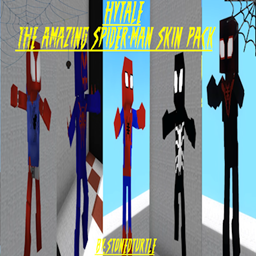
This is one of the only Skin mods I've seen! This replaces the player model in-game with a Spider-Man one! Comes with a Brighter Red/Blue, Darker Red/Blue, Symbiote Versions, Miles, 2099, and Scarlet Spidey (Ben Riely)
![[NoCube's] Undead Warriors](https://media.forgecdn.net/avatars/thumbnails/1602/742/256/256/639035338178853736.png)
[NoCube's] Undead Warriors
NoCube
Adds enemy skeletons with random equipment.
Skeleton Banging Shield
Jen3713_
Makes some skeletons bang their weapon while yelling "RAAAAH"
HyTame - Animal Breeding
LaitK
Animal breeding and baby growth for Hytale to expand your farm