nyoUpdates
Automatically checks and downloads mod updates from CurseForge.
About nyoUpdates
nyoUpdates
nyoUpdates is a mod that automatically checks for updates on CurseForge and downloads them for you. It uses the public CFWidget API, so no API key is required.
How It Works
When the server starts (or when you run /updates check), nyoUpdates scans your mods folder
It checks CurseForge for newer versions of each mod
If updates are found, they are downloaded to a .updates folder
An apply_updates.bat script is created in your mods folder
You can apply updates using the .bat (manual mode) or automatically on restart (auto mode)
Features
No API Key Required - Uses the public CFWidget API
Smart Search - Finds mods even with non-standard names (GoneFishing → gone-fishing)
Bundle Support - Automatically extracts mods from bundle .zip files (e.g., hyfixes-bundle)
Interactive Update Script - apply_updates.bat lets you select which mods to update
Safe Updates - Only deletes old files if the new file exists
Automatic Checks - Checks for updates on startup and every 12 hours
Manual or Automatic Mode - Choose how updates are applied
Backup System - Creates backups before updating
Release Type Filter - Choose to only receive releases, betas, or alphas
Ignore List - Exclude specific mods from updates
Lightweight - ~150KB, no external dependencies
⚠️ Hosting Service Compatibility
Important: Many hosting services do NOT support the --accept-early-plugins argument required for automatic updates.
nyoUpdates works in MANUAL mode by default, which is compatible with ALL hosting services.
If you use a hosting service (not self-hosted), use manual mode and run apply_updates.bat during server maintenance.
Quick Start Guide
For Singleplayer / Manual Mode (Recommended)
Install nyoUpdates in your mods/ folder
Start the game/server - it will check for updates automatically
When updates are found, close the game/server
Go to your mods/ folder and double-click apply_updates.bat
Select which mods you want to update (or press A for all)
Press Y to confirm and apply updates
Start the game/server again
For Dedicated Servers (Auto Mode)
If you have full control over your server and want automatic updates:
Run /updates enable in-game or console
Add --accept-early-plugins to your startup command
Restart the server
Updates will be applied automatically on each restart.
Example startup command:
java -jar HytaleServer.jar --assets Assets.zip --accept-early-plugins Switching Back to Manual Mode
Run /updates manual in-game or console
IMPORTANT: You must manually delete the earlyplugins/ folder from your server directory The plugin cannot delete this folder while running
If you don't delete it, updates will still be applied automatically on restart
Commands
Command Description
/updates check Check for updates, download them, and create apply_updates.bat
/updates list List all installed mods with IDs
/updates pending Show updates waiting to be applied
/updates status Show detailed plugin status
/updates setup Show setup guide
/updates enable Enable automatic updates (self-hosted only)
/updates disable Disable automatic updates
/updates ignore <id|name> Ignore a mod from update checks
/updates unignore <id|name> Stop ignoring a mod
/updates mapping add <id|name> <url> Map a mod to a CurseForge project
/updates mapping remove <id|name> Remove a mapping
/updates mapping list Show all CurseForge mappings
/updates reload Reload configuration
/updates debug Show debug information
Command aliases: /updates, /update, /upd, /nyo, /nyoupdate, /nyoupdates
Using Mod IDs
Run /updates list to see all mods with their IDs:
======================================== NyoUpdates - Installed Mods ========================================
ID Mod Name Version Status ------------------------------------------------------------ 1 EyeSpy 2026.1.20 [OK] 2 HytaleVotifier 1.0.0 [MAPPED] 3 Votifier 1.4 [OK] 4 nyoUpdates 1.5.0 [IGNORED] 5 Violet's Furnishings 0.1 [OK]
======================================== Commands: /upd ignore <ID> - Ignore a mod /upd unignore <ID> - Unignore a mod /upd mapping add <ID> <url> - Map to CurseForge ======================================== Use the ID number in commands:
/upd ignore 4 - Ignore nyoUpdates
/upd mapping add 2 https://curseforge.com/hytale/mods/hytale-votifier
The apply_updates.bat Script
When updates are found, an interactive script is created in your mods folder:
╔══════════════════════════════════════════════════════╗ ║ N Y O U P D A T E S ║ ║ Mod Update Tool ║ ╚══════════════════════════════════════════════════════╝
Updates ready to install:
──────────────────────────────────────────────────── [X] 1. GoneFishing -> 0.1.2 [X] 2. Playtime -> 1.3.0 [X] 3. HyFixes -> 1.9.7 [X] 4. [EP] HyFixes (EarlyPlugin) -> 1.9.7 [ ] 5. SomeMod -> 2.0.0 (deselected) ────────────────────────────────────────────────────
[EP] = EarlyPlugin (installed to earlyplugins folder)
Commands: [number] Toggle specific mod (1-5) [A] Apply all selected updates [S] Select all | [D] Deselect all [Q] Quit without applying
Enter command: _ Note: Items marked with [EP] are EarlyPlugins that will be installed to the earlyplugins/ folder instead of mods/.
Update Modes
Manual Mode (Default - Works Everywhere)
Run /updates check - finds and downloads updates
Stop the game/server
Run apply_updates.bat in your mods folder
Select mods and confirm
Start the game/server
Automatic Mode (Self-Hosted Only)
When enabled, updates are applied automatically when the server starts:
Run /updates enable in-game
Add --accept-early-plugins to startup
Restart - updates are applied automatically
The apply_updates.bat is deleted after auto-apply
Configuration
Config file location: mods/dotJunyo_nyoUpdates/config.json
{ "autoUpdateOnStartup": true, "checkIntervalHours": 12, "enableEarlyPlugin": false, "maxConcurrentDownloads": 2, "createBackups": true, "backupRetentionDays": 7, "gameVersionFilter": "", "releaseTypesAllowed": ["release", "beta"], "ignoredMods": [], "notifyOnAvailableUpdates": true, "modsFolderPath": "", "connectionTimeoutSeconds": 30, "readTimeoutSeconds": 60, "maxRetries": 3, "verifyChecksums": true, "curseforgeMapping": {} }
Option Description Default
autoUpdateOnStartup Check for updates on startup true
checkIntervalHours Hours between periodic checks 12
enableEarlyPlugin Enable automatic file replacement false
maxConcurrentDownloads Maximum parallel downloads 2
createBackups Backup mods before updating true
backupRetentionDays Days to keep old backups 7
gameVersionFilter Filter by game version (empty = all) ""
releaseTypesAllowed Allowed release types ["release", "beta"]
ignoredMods Mods to skip during checks []
notifyOnAvailableUpdates Log when updates are found true
modsFolderPath Custom mods folder (empty = auto) ""
connectionTimeoutSeconds HTTP connection timeout 30
readTimeoutSeconds HTTP read timeout 60
maxRetries Download retry attempts 3
verifyChecksums Verify file integrity after download true
curseforgeMapping Manual CurseForge slug mapping {}
Handling Mods with Similar Names
If you have mods with similar names that NyoUpdates can't auto-detect (e.g., "votifier" and "hytale-votifier"), you'll see a warning like:
========================================== UNVERIFIED MOD: HytaleVotifier Could not find the installed file in any CurseForge project. File: hytale-votifier-1.0.0-SNAPSHOT.jar (25000 bytes)
Found 1 project(s) with similar names, but the exact file was not in their history. This could mean: 1. The mod was renamed after you installed it 2. It's a different mod with a similar name 3. It's a private/custom build not on CurseForge
Possible matches: - Votifier (https://curseforge.com/hytale/mods/votifier)
To manually specify the correct project, add to config.json: "curseforgeMapping": { "hytale-votifier-1.0.0-SNAPSHOT.jar": "hytale-votifier" } ========================================== Option 1: Use the /mapping command (Recommended)
/updates list # Find the mod ID /updates mapping add 2 https://curseforge.com/hytale/mods/hytale-votifier or just use the slug:
/updates mapping add 2 hytale-votifier Option 2: Edit config.json manually
Add the mapping to your config.json:
{ "curseforgeMapping": { "hytale-votifier-1.0.0-SNAPSHOT.jar": "hytale-votifier", "votifier-1.4.jar": "votifier" } } The key is your mod's filename, the value is the CurseForge project slug (from the URL).
Bundle Support
NyoUpdates automatically handles mods that come as bundle .zip files containing both the mod and an EarlyPlugin.
Example bundle structure:
hyfixes-bundle-v1.9.7/ ├── mods/ │ └── hyfixes-1.9.7.jar ├── earlyplugins/ │ └── hyfixes-early-1.9.7.jar └── README.md How it works:
NyoUpdates downloads the bundle .zip
Detects it's a bundle (has mods/ folder)
Extracts hyfixes-1.9.7.jar to your mods folder
If you have an earlyplugins/ folder with existing jars, also extracts the EarlyPlugin
Deletes the original .zip bundle
EarlyPlugin safety: The EarlyPlugin from a bundle is ONLY installed if:
Your server has an earlyplugins/ folder
That folder already contains at least one .jar file
This prevents issues on servers that aren't configured for EarlyPlugins.
Categories
Need a Server?
Run nyoUpdates on a dedicated Hytale server with easy mod management.
Get Hytale HostingFrequently Asked Questions
What is nyoUpdates?
Automatically checks and downloads mod updates from CurseForge.
How do I download nyoUpdates?
You can download nyoUpdates for free from CurseForge. Click the "Download on CurseForge" button on this page to go directly to the download page.
Who created nyoUpdates?
nyoUpdates was created by dotJunyo. The mod has been downloaded 3.1K times.
Is nyoUpdates compatible with Hytale servers?
nyoUpdates is designed for Hytale and can be used on both single-player and multiplayer servers. Check the mod page on CurseForge for specific compatibility information.
How do I install nyoUpdates?
To install nyoUpdates: 1) Download the mod from CurseForge, 2) Place the file in your Hytale mods folder, 3) Restart the game. The mod should load automatically.
Related Utility Mods
View all mods
BetterMap
Paralaxe
Enhance Hytale World Map

Hybrid
Serilum
🏛️ A Hytale mod library that contains common code for all of Serilum's mods.
VeinMining
EineNT
Instantly mine connected ores and blocks by holding the Walk key (LEFT ALT) while breaking a single block.

Wayback Charm
DarkhaxDev
A charm to help you find your way back home.
Better Modlist
Buuz135
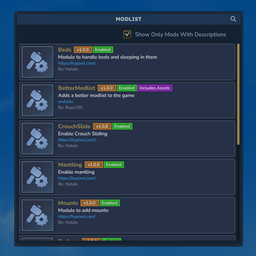
Adds a better modlist to the game, with improved features like searching and logos.
Simple Claims
Buuz135
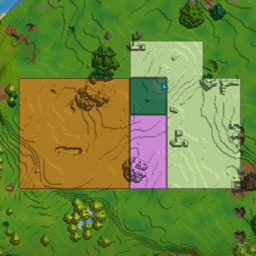
Adds a chunk claim and protection system.